Express USB Phone Installation Guide
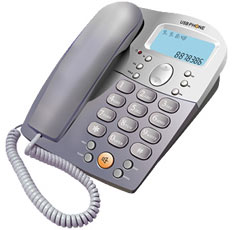
Express USB Phone Setup Guide
Our Express Talk softphone already includes the divers needed to support the USB Express Phone for Windows 2000 or XP. You will need Express Talk v1.04 or later. To download the latest version, please go to the Express Talk homepage.
Setup
Setting up the Express USB Phone for Express Talk is easy. Just follow the instructions below, and, if in doubt, refer to the diagram (left).
- Download and install Express Talk v1.04 or later.
- Open the Settings of Express Talk and on the Audio tab choose Use Express USB Phone under "Communications Device".
- In the Other tab ensure "Run on the tray to receive calls" and choose your preference for users from the dropdown box.
- Click OK to close out of the Settings.
- Connect the Express USB Phone to a USB port on your PC. The LCD display of the phone should light up with VOIP-PHONE written on the display.
- Windows 2000 or XP should automatically recognise the new USB device and will install the needed drivers for you.
- Once the drivers are installed a message will appear asking you to restart your computer.
- Reboot your computer.
- Once you have restarted your computer Express Talk will detect the handset and the display on the Express USB Phone should return the date and time.
- When the device is installed and connected your system will automatically set the adapter as the default device for all audio, including
playback of recordings, playing system alerts & music etc. To re-set your system sound card as the default audio device:
- Cick on Start > Settings > Control Panel > Sound and Audio Devices > choose the Audio Tab. In the Sound Playback Box
select your system sound card as the default device.
- In the Sound Recording Box select USB Audio Device, then click on Volume.
- The Wave In dialogue box will appear. Click on Advanced
- In the Advanced Controls for Wave dialogue box un-check AGC.
- Close the Advanced Controls for Wave and the Wave In dialogue boxes.
- In the Sound Recording Box select you system sound card as the default device.
- Click Apply then Close.
- You are ready to go!
|
|
