Express Scribe Tutorial 2: Basic Operation Before continuing, please look at the screen shot below and locate the positions of all the interface controls.
For more information on setting up your foot pedal control and options please click here
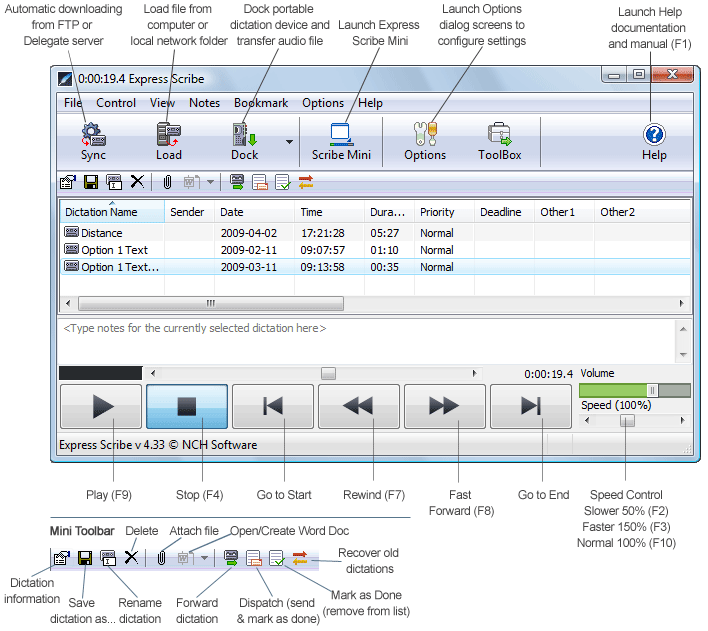
Step 1 of 6: Loading an Audio File Express Scribe displays recordings that are similar to tapes. Each recording is listed with details of who created the file, when it was created, the length of the recording, notes, and the current location. There are three options to load audio files into your Express Scribe program. - Automatic/Sync: You can set Express Scribe to check an FTP server, local network or computer folder and Express Delegate server for new dictations at timed intervals. The program will automatically load new dictations found in the specified path. Set up automatic loading from the Incoming tab in the Options dialog.
- Manual Load: Load from a local computer folder, network or CD by clicking on the Load button on the main interface. You will be able to browse your computer and network connections for your audio file.
- Dock: Transfer audio from a portable device directly to Express Scibe. There are two options, an Audio Cable Method which allows you to record audio from an analog source such as a cassette tape player, or Audio File Transfer for devices that can be connected by USB to your computer.
Step 2 of 6: Playing a Recording To play a recording, do one of the following: - Press the F9 key to start playing the file, and press the F4 key when you want to stop.
- Click the Play button at the base of your screen to start playing the file, and click the stop button (A black square) when you want to stop.
- Press the middle pedal of your Foot Pedal control to start playing the audio file. Release or quick tap to stop the audio. For more information on setting up your foot pedal control and options please click here
Try playing a recording now. Use your mouse to highlight the "Welcome" recording and press the play button. If you cannot hear anything then open Options, go to the Playback tab and check that the correct sound card is selected and increase the volume. If you still cannot hear anything then ask your local computer technician to check the sound card on your computer. Step 3 of 6: Moving Back and Forward within the recording Keyboard and Hot Key Control - To rewind the recording, press and hold down F7
- To fast forward the recording, press and hold down F8
- To move directly to the start, press the Home key
- To move directly to the end, press the End key
Rewind now by pressing and holding down F7. Step 4 of 6: Resizing the Window Express Scribe allows various different view of the application. - Full Size: The main and small toolbar icons are present, Dictation file list view, Play Back controls and Notes section.
- Play Control: By dragging the lower right corner of the application up towards the top left corner you can create a view that does not include the Main and Small toolbars or the Notes section. This leaves you with the Dictation list view and the Play Controls.
- Mini: Click on the Scribe Mini icon on the Main Toolbar to reduce Express Scribe to about an inch in size.
- Customized: You can customize your view of Express Scribe by going to the View menu and selecting or deselecting the icons, buttons and toolbars that you would like to see or remove.
Step 5 of 6: Typing the Recording Select the recording you wish to type out, and press the play button. If the typing pad is not visible then select the "View" menu at the top of your screen, and left click "Show Typing Pad". Click the left mouse button in the typing pad to begin. You can also type using any Windows word processor including Microsoft Word, Corel Wordperfect, Lotus Wordpro and others while Express Scribe runs in the background. If you use a word processor, you should use system-wide hot keys so that Express Scribe can be controlled while it is in the background. Alternatively, you can use a footpedal control. Step 6 of 6: Dispatch Typing When you have completed the typing for a file, you can either Dispatch the typing by email to the person who dictated the file or you can simply mark the file as Done. To Dispatch a file by email either: - Press Ctrl+D to Dispatch the file by email to the sender.
- Click on the Dispatch icon on the Small Toolbar.
If you have typed the document using a word processor (eg. Microsoft Word), you can attach the document file to the email (click Browse). To remove the file from the current files list (without reply by email to the sender) either:
- Press Ctrl+N for Done
- Click on the Done icon on the Small Toolbar
If you need to recover the file to amend it either: - Press Ctrl+O.
- Click on the Recover Old Dictations icon on the Small Toolbar
Next: Tutorial 3 - Discover Advanced Features >>> Click Here >>> | 