DialDictate
Tutorial 3: Configuring DialDictate
Step 1 of 5 Selecting Audio Compression
Audio files can be very large. "Audio Compression" is used to reduce the size of a file. Remember that the more compression that is used the worse the resulting file quality so using compression is a trade off between quality and file size. Different compression formats can be compared at www.nch.com.au/acm.

Different compression formats are called "codecs". You should always select a codec that is also installed on the typist's computer. The codecs that are installed on a computer can normally be viewed in control panel/multimedia properties/devices/audio compression codecs (or a similar folder).
You will need to set Audio Compression Format. Using the menu open General Settings -> Options -> Set Audio Compression Format. The recommended setting is GSM6.10.
Step 2 of 5 - User Send Settings
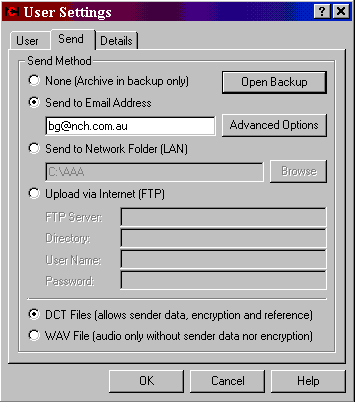
Decide how the audio file will be dispatched from the DialDictate computer to the typist's computer. There are generally 3 options:
- Sending over your computer network LAN (the easiest). This includes the situation when DialDictate and Express Scribe are on the same computer.
- Sending by email (this is useful where the typist works remotely).
- Uploading to an FTP server (most complex but also powerful in large organisations). See the reference manual for more information about these options.
Choose your settings with the User Settings -> Send tab.
Step 3 of 5 - Sending the Dictation
Now create a new dictation. It should be sent using the send method you selected in step 2. Make sure you have installed Express Scribe on your typists computer.
Now set Express Scribe on the typist's computer to automatically scan for incoming dictations (from Express Scribe use Settings -> Incoming). Express Scribe will detect and load your dictation.
That is it! You have completed the exercise and are ready to use DialDictate.
Step 4 of 5 - The Help Manual
If you want to access DialDictate's advanced features or fix a problem, you can access the help menu using the F1 key or by clicking Help -> Help Contents in the top right corner of the DialDictate screen.
If you have searched the manual and still cannot find the solution to a problem, you can request support by doubleclicking on the Technical Support link at the DialDictate homepage www.nch.com.au/dialdictate and following instructions there.
Step 5 of 5 Purchasing a DialDictate User license
You have finished the DialDictate introduction Tutorial. If you feel DialDictate will be useful, please purchase a user license now to continue to use it. There are two options for registering DialDictate.
~ User registration: Each individual dictator is considered a user and needs to purchase an Express User's Registration. This registration can be used by that dictator on DialDictate or Express Dictate or on both. User registrations are non-transferable.
~ Site license. A larger organization might want to purchase site license which enables them to create as many users as they require. Site licenses are only available for DialDictate.
For more information please click here.
| 